
My Raycast set-up
There are many like it, but this is mine.

I have noticed that I have become borderline obsessed with my tools and set-up lately. It’s been a while since I’ve been this excited by software. And Raycast gets me Oprah-levels of excited.
Raycast can be either underwhelming or intimidating. You could easily think it’s just a differently flavored Spotlight. Or run for the woods when confronted with its feature list.
If the Holy Ray of Light is ever in need of disciples, consider me an evangelist. Some readers will attest: I have definitely been doing the nudging of friends and colleagues.
Which is why I thought it'd be interesting to do a quick rundown of why Raycast has become indispensable for me. Seriously: in a world without Raycast, I would quit my computer entirely.
A modest introduction to Raycast
For Hannes, who is walking toward the light.
And Dries, who chooses to remain in darkness.
Essentials
Every trooper needs these in combat.
Launcher
Obviously, Raycast is a launcher. It does launcher stuff. Launching apps, finding things. It’s a calculator, a conversion tool, and so forth.
If you insist to live without a launcher, there’s no point to keep reading. But question your life decisions.
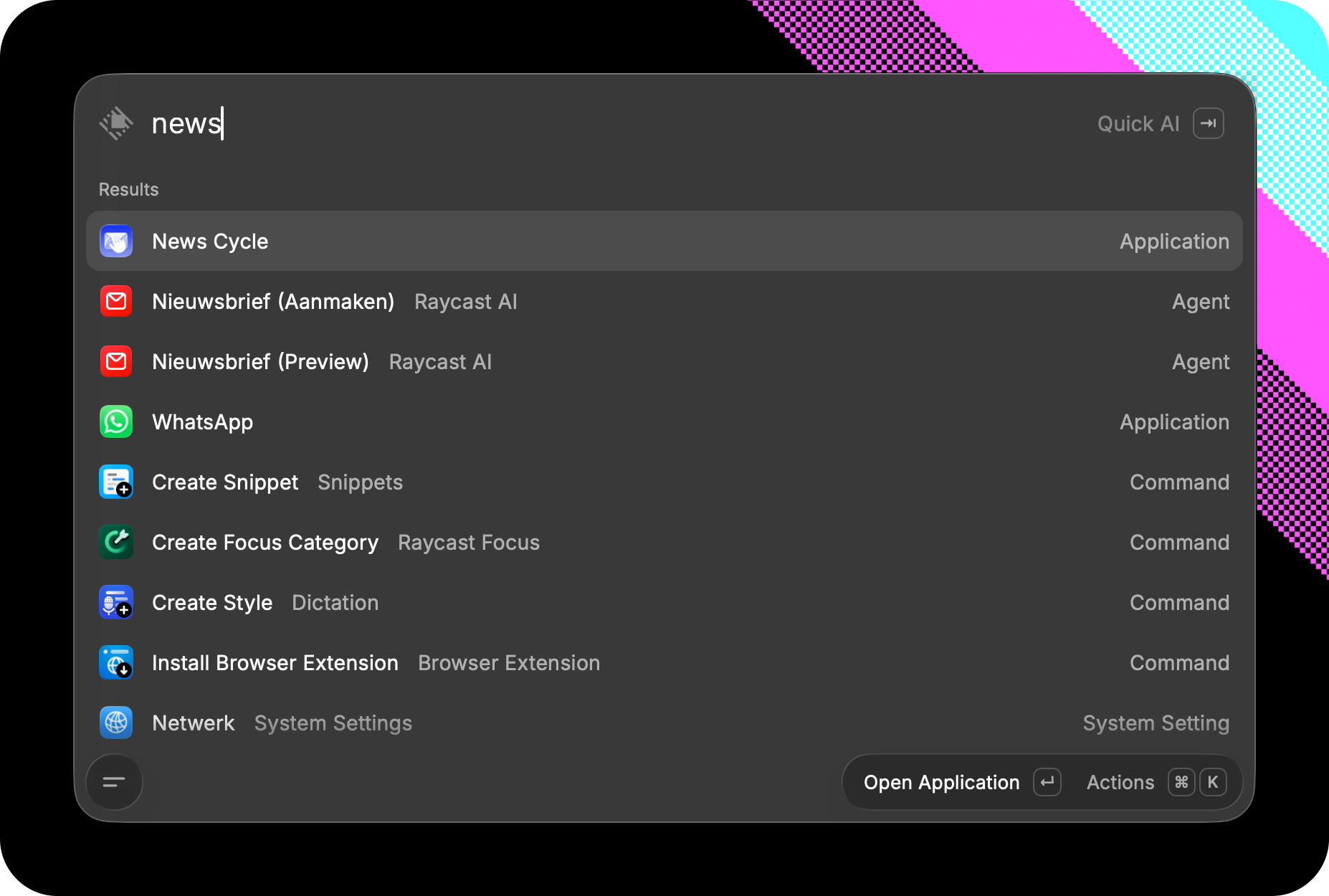
A small step up the ladder towards the Light is using Quicklinks. For example: [video] opens a Finder folder with video assets I need often, [banners] opens a Figma file with email headers I kept forgetting where to find. Quicklinks supports dynamic placeholders (like including a search query), but I am not that advanced yet.
Clipboard manager
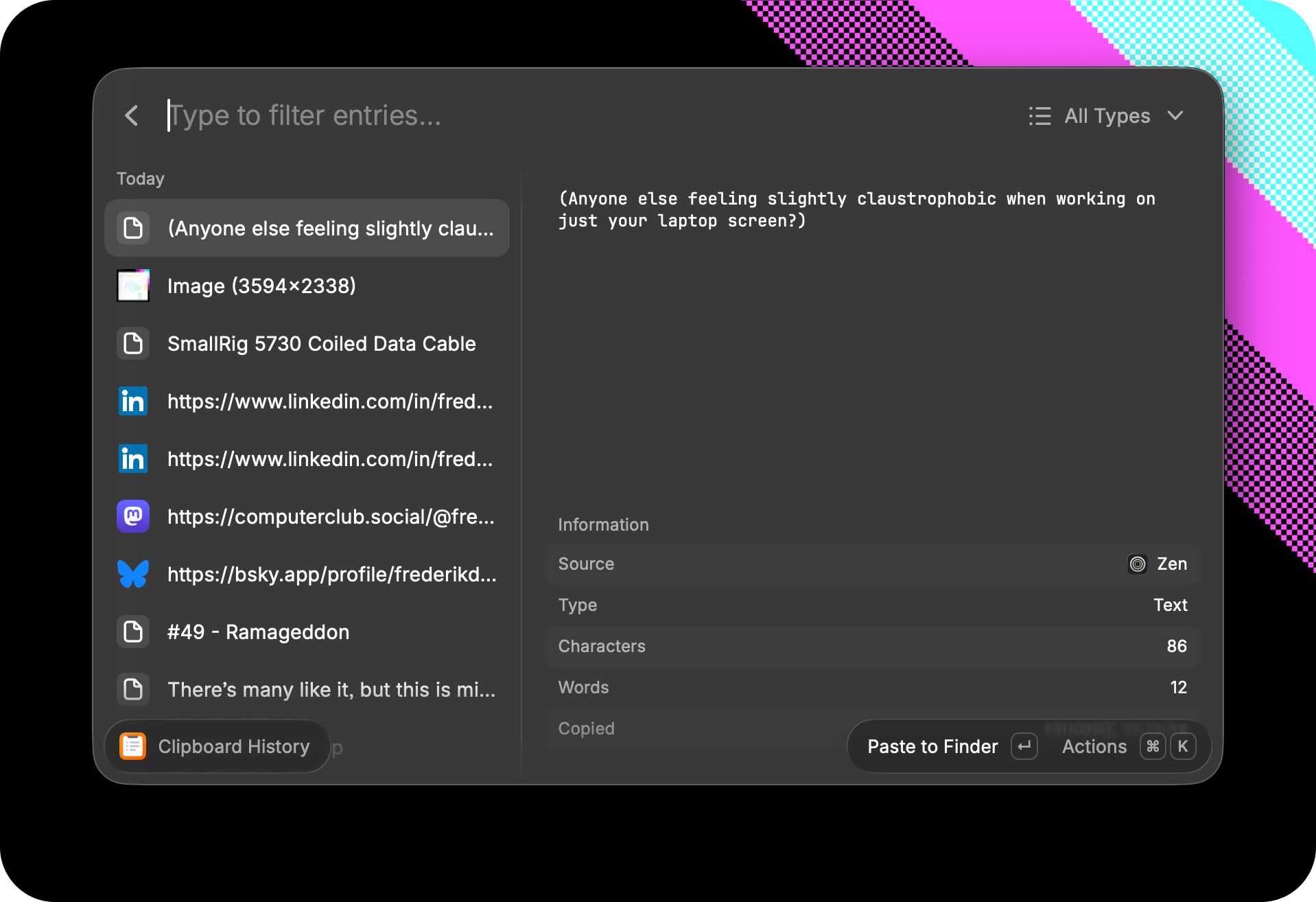
A lot of our job is moving text around, especially now with AI. Somehow, I had been living without clipboard history. I couldn’t anymore.
This really is something I use all the time. It’s set as a favorite, so when I open Raycast I just [↓ + ↩] and boom.
A small aside: similar to copy-pasting text, moving screen grabs around is also a big part of the busywork nowadays. I use Shottr as a screenshotting tool [⌥ + S], often immediately using the built-in OCR functionality (⌘ + O) straight after.
Windowing
In the same vein as the clipboard manager: a lot of work is looking at two different windows while moving said stuff around. AI is a lot of multi-tasking. Again, there’s great window management tools (like Magnet), but it’s also just very nicely baked into Raycast.
There’s something strangely intuitive to just typing [left half] and the window doing exactly that. But, more importantly, it’s also where aliases and especially hotkeys come into play.
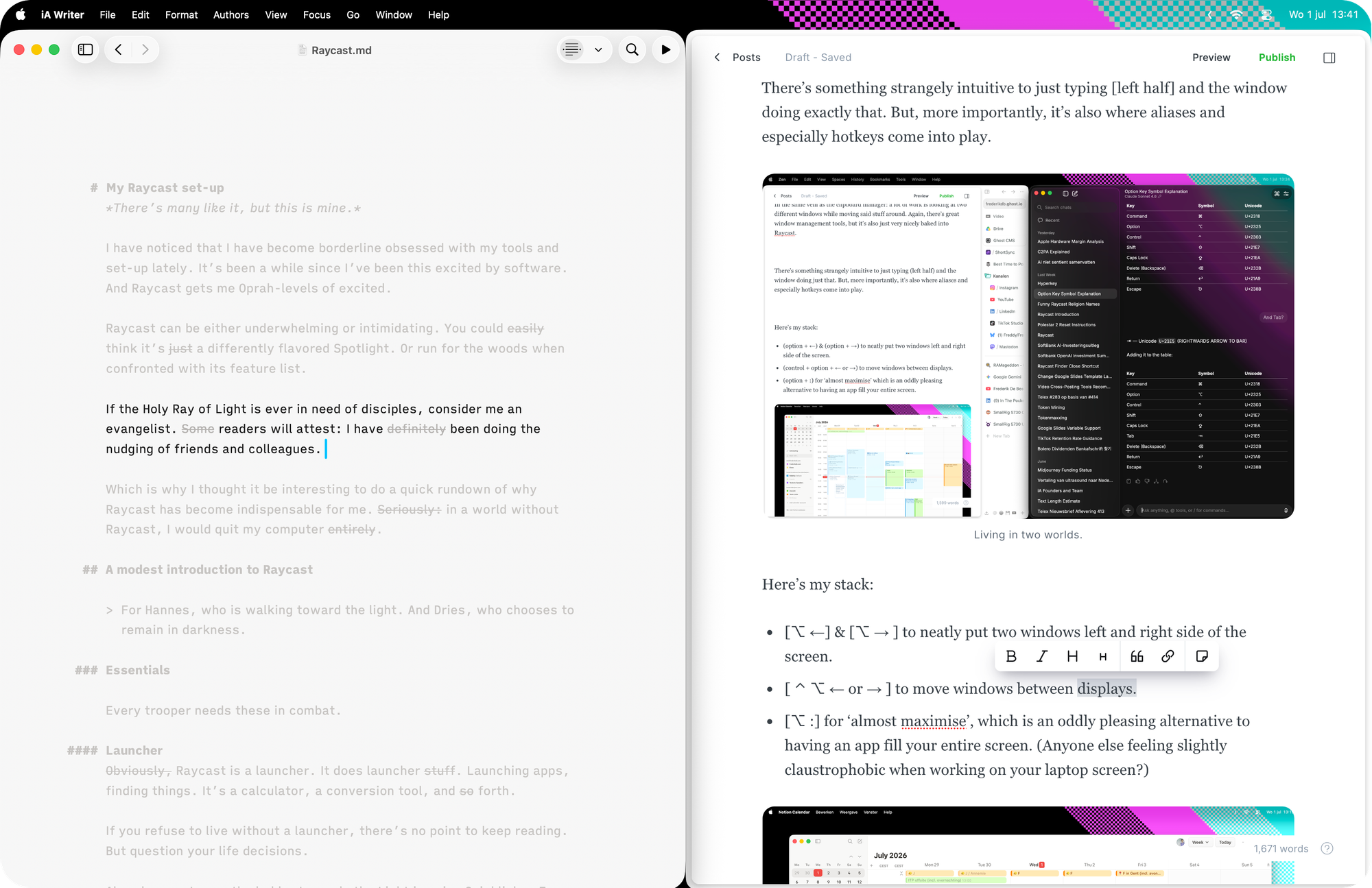
Here’s my stack:
- [⌥ ←] & [⌥ → ] to neatly put two windows left and right side of the screen.
- [ ⌃ ⌥ ← or → ] to move windows between displays.
- [⌥ :] for ‘almost maximise’, which is an oddly pleasing alternative to having an app fill your entire screen.
Calendar
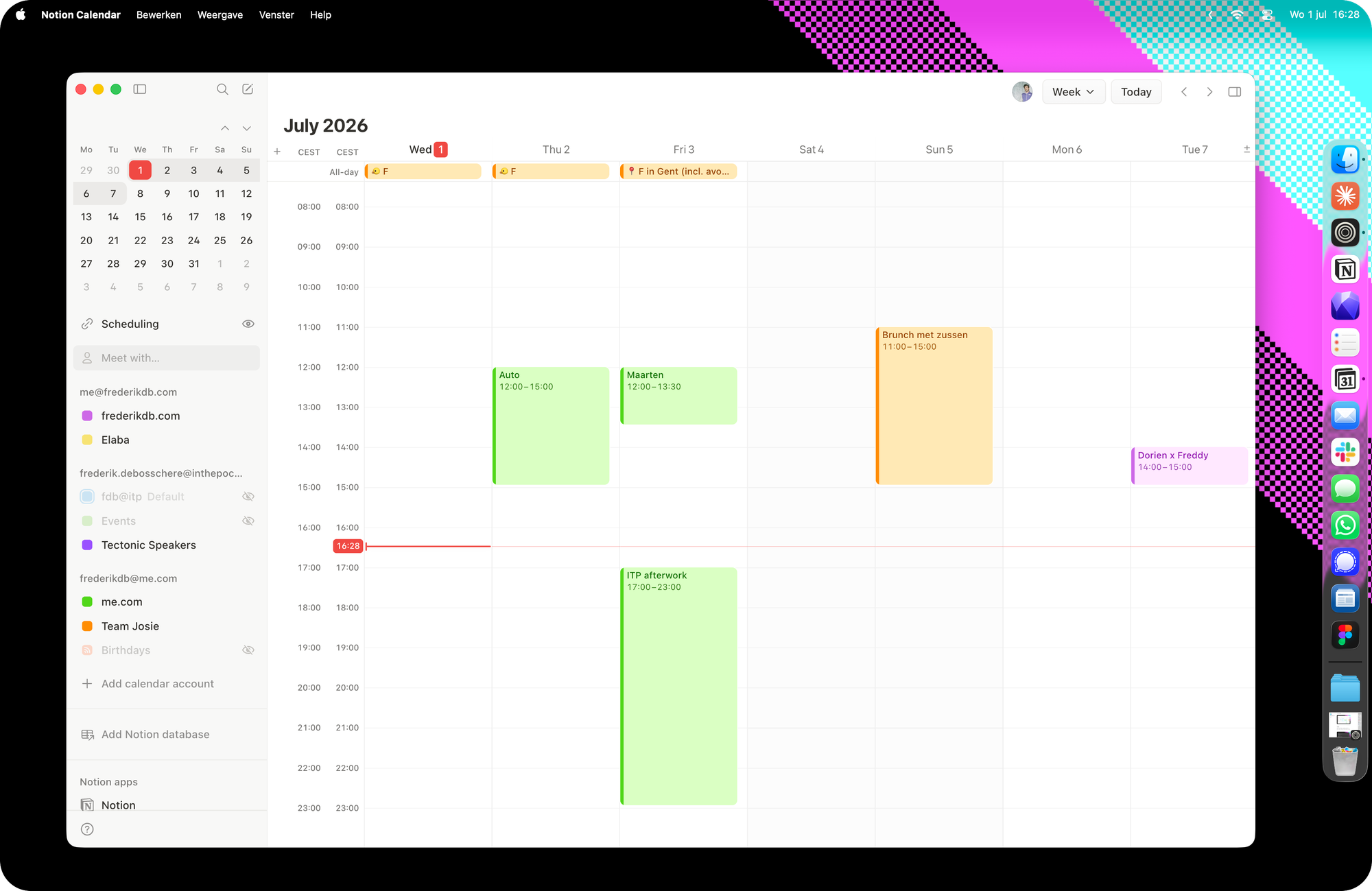
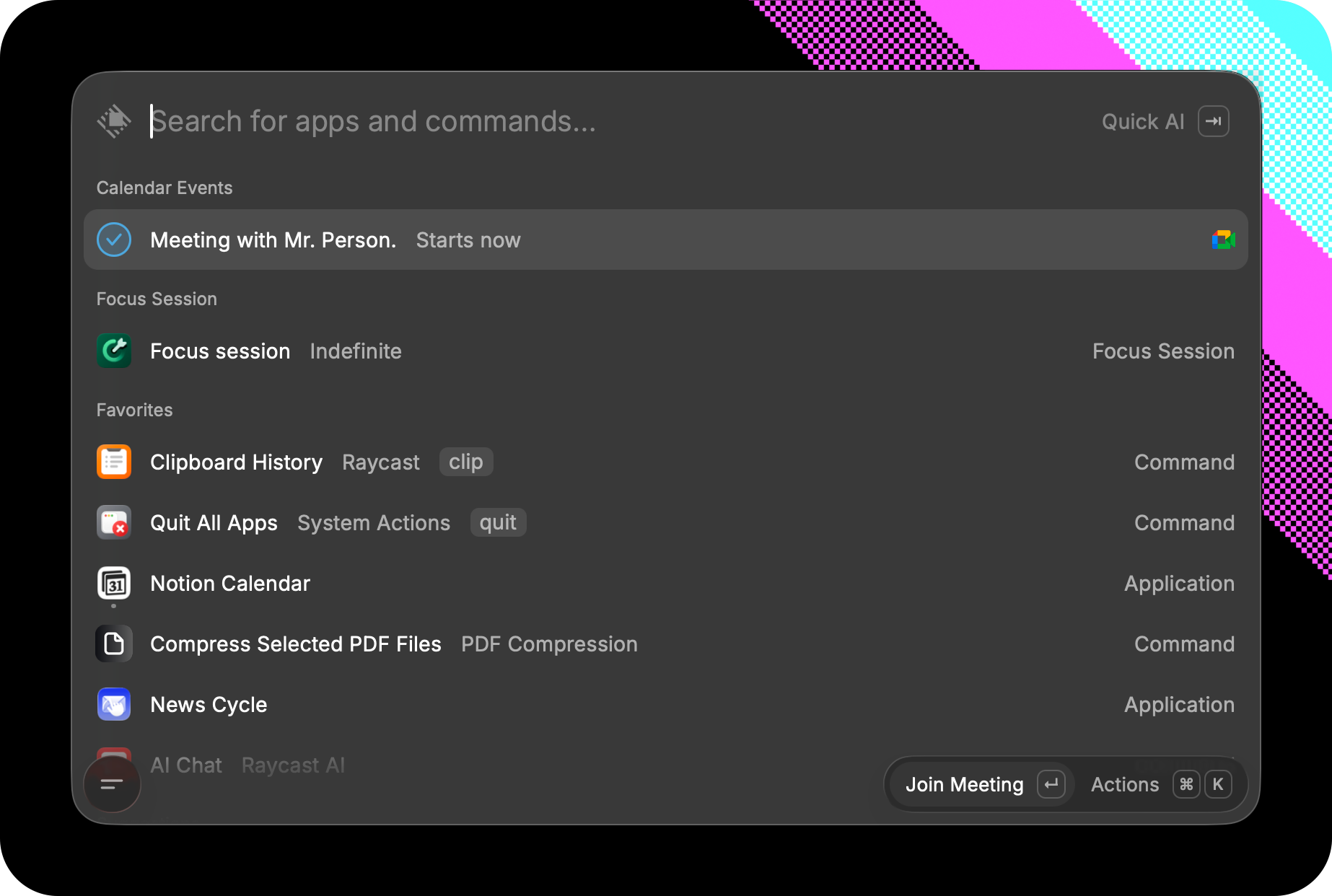
Simple, but effective. Linking your calendar to Raycast means upcoming meetings will appear in your Raycast window. Joining a call is as easy as hitting ↩.
Emoji picker
I am not too proud to admit I use emoji. Admittedly, like a boomer, but that is besides the point. I don’t know who built the default Mac emoji picker, but it never seems to actually work. Raycast’s alternative just does. It also allows you to set aliases for those fuckers you never remember by their official names.
Snippets
Again, something that exists, but I had not bothered with before I converted to The New Church of ⌘ Space. (Probably because Mac hides this seven-settings-screens deep.) Snippets are simple text replacements. Here’s a few examples and ideas for good triggers.
- For email, this works for me: [fdb@me], [me@fdb], [f@cc], [ f@itp], etc. Trust me, you use your email addresses a lot.
- For others, you don’t want to have to guess the keyword. But you don’t want them to trigger too often either. Some put a [;] before the name of their snippet, I just repeat the first letter: [ttel] becomes my telephone number, for instance, [vvat] my company number.
- For managing everything around Computer Club, I have some very specific ones: [ccpurl] creates the url of episode pages (computer club podcast url). I use this maybe 3 times every week, but using snippets adds up.
Like Quicklinks, these support variables, but I haven’t found a use for this yet. (The use case they always demo: you select the sender of an email, pick a template to send as a reply, and the person gets added to the greeting.)
If you’re into that
These features depend on whether or not this kind of thing is your jam.
Quick AI
This is a Pro feature of Raycast. Now rest assured: Raycast is amazing as a free tool. But AI is part of the Pro suite, and simply hitting [⇥] in your Raycast and starting an AI chat feels like the right way to live. And there’s a more extensive AI Chat environment for when things get cozy and you need a room.
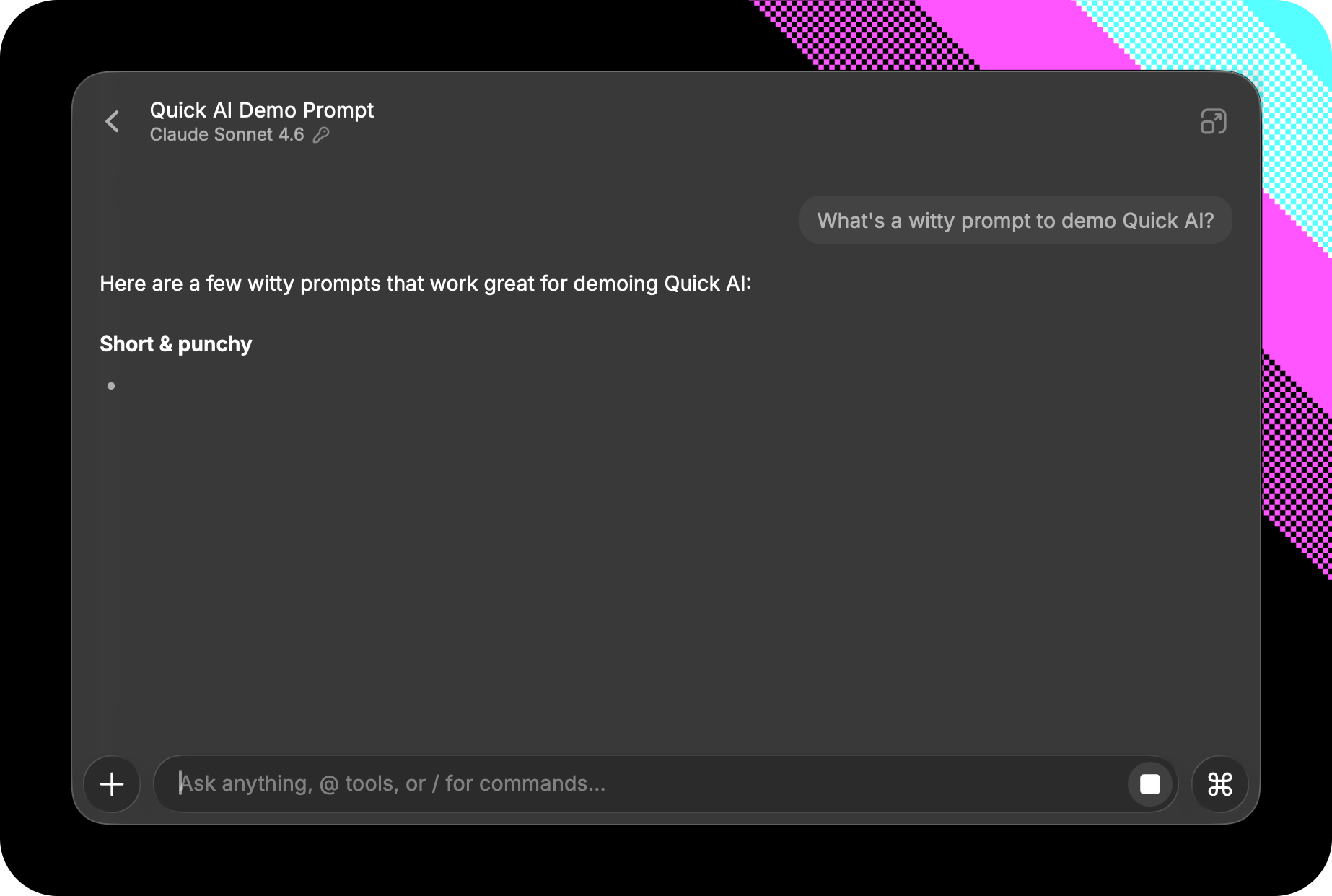
I don’t like the idea of becoming dependent on one AI vendor, so it’s nice that Raycast is multi-model. You can either pay for access to different models through Raycast itself, or bring your own keys.
I’ve begun making Raycast AI the replacement for my personal Claude, as it now supports memory, skills, and agents. It’s early days (my work Claude set-up is much more advanced), but check out my friend Thibault’s blog for an example of agents in Raycast.
Somewhat disappointing is AI Extensions. In theory, this imbues extensions with The Power of LLM ™ . Maybe I lack the imagination for use cases that do work, but asking Calendar to schedule a meeting with person A and B at the next available time ... and it’s hit-or-miss. Which means this will be the first and last time you try. If you have any AI Extension uses you couldn’t live without, please do let me know because It Could Just Be Me.
Focus mode
By now, you might start noticing a theme: yes, there are other focus apps out there, but it’s because this is included in The Divine Floating Bar that I started giving it a try.
You tell it to focus, with the option to set a duration. You can then have Raycast block distractions, in the form of apps (say Slack) or websites (like social networks).
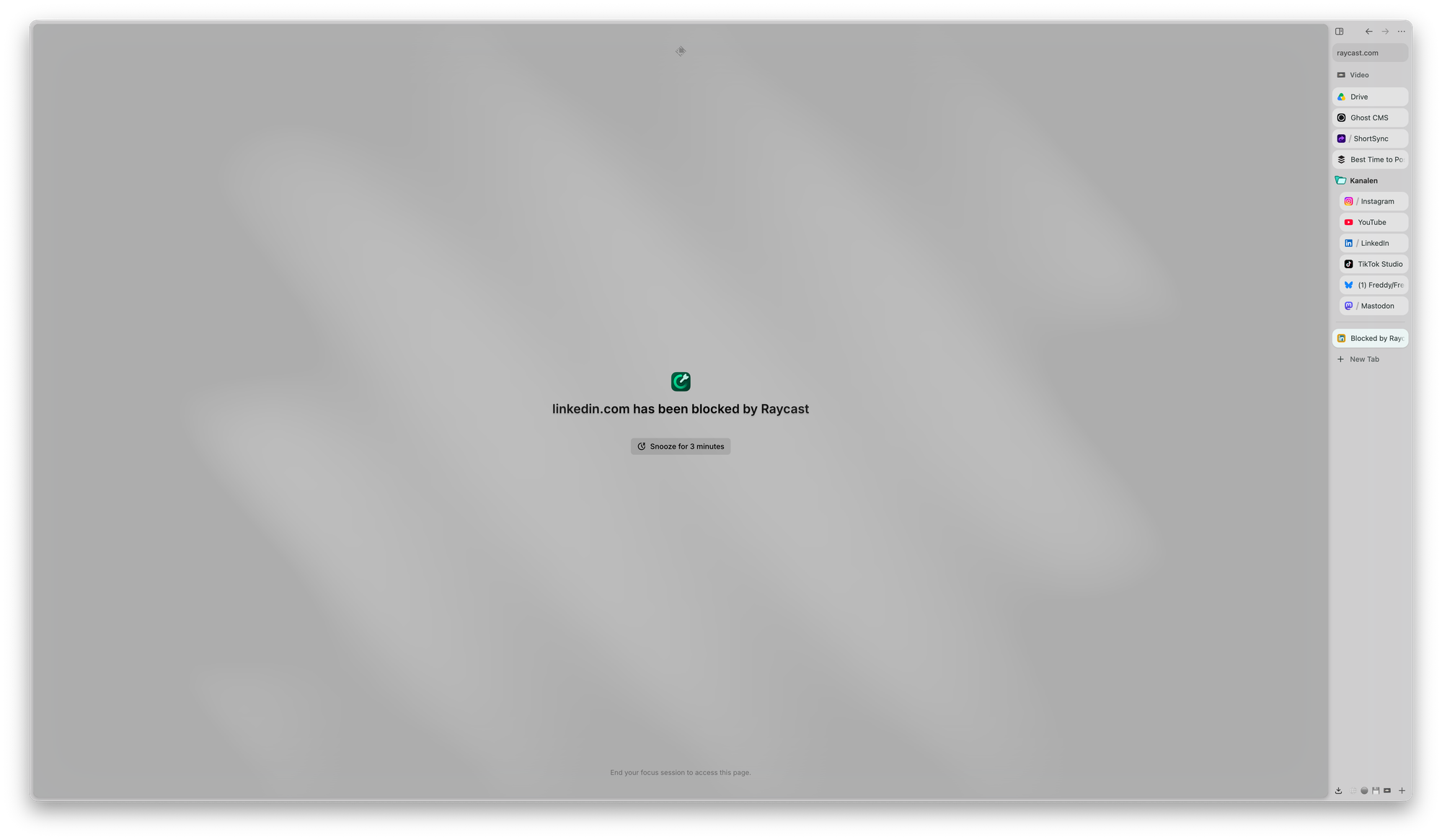
I can imagine people having a way more advanced focus set-up, but this works for me in all its straightforwardness.
Extensions
As if the base app isn’t extensive enough (I haven’t even begun to cover it all), there’s extensions to ... uhm ... extend things even further.
There’s a few universal use cases, like searching Spotify, or quickly accessing your password manager (big fan of Proton Pass over here).
And some that will be very specific to your job. In my case: a simple color picker that copies any colour value I click on screen to my clipboard, an image converter and optimiser, a PDF compressor, or a huge library of SVG logos.
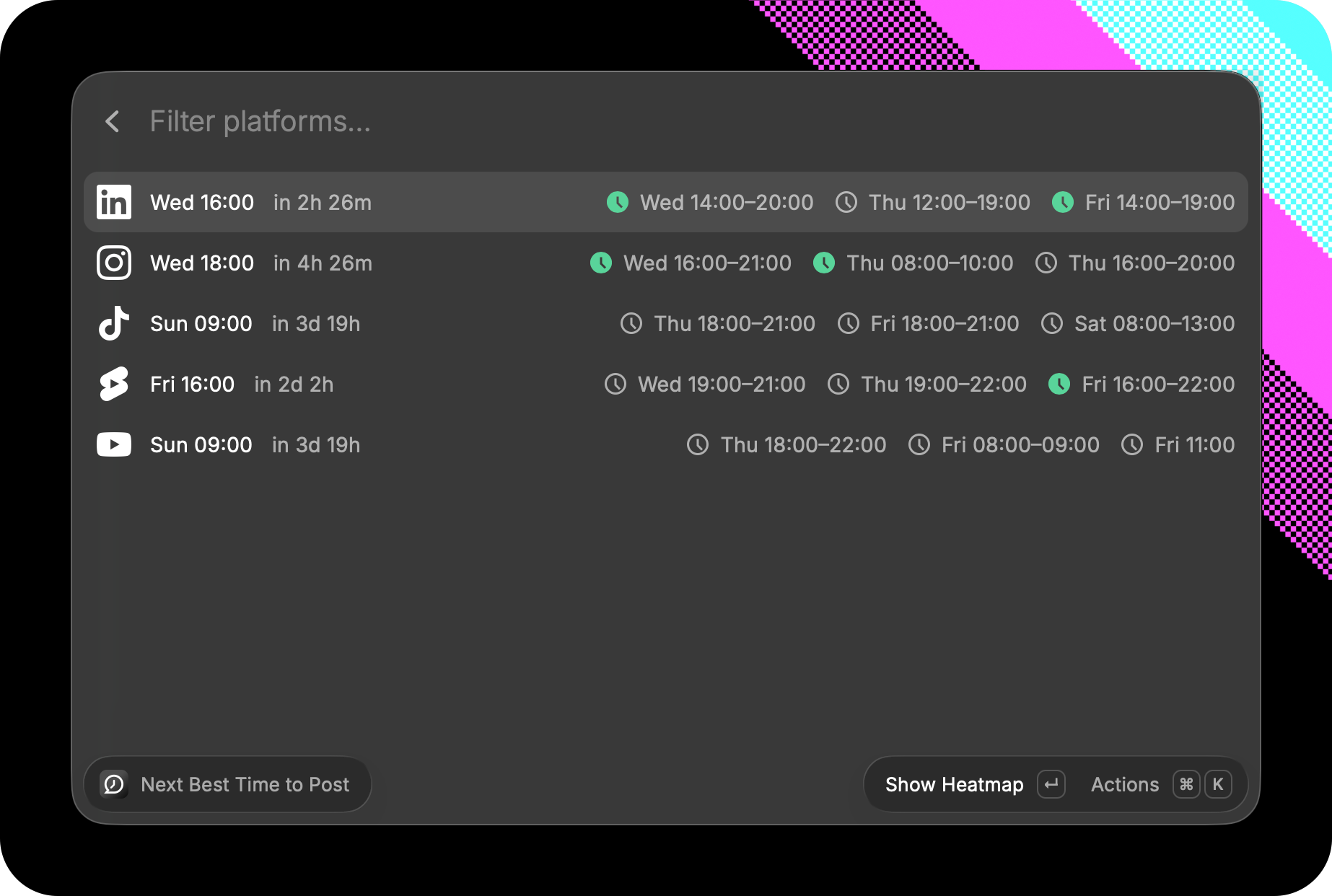
And, because we’re living in times Where You Can So You Should: I also created my own Raycast extension called ‘Next Best Time To Post’. It tells you about best times to post on platforms, based on insights by Buffer.
Commitment issues
Finally, there’s a few features that spark my curiosity, but that I haven't yet surrendered myself to.
The Hyperkey.
A ‘hyperkey’ is when you have one key stand in for [⇧ ⌃ ⌥ ⌘]. Why you might ask? (I did.) Because that key combo is so complex it's always available, which makes it ideal for shortcuts. In my case, I use Right ⌘ as my hyperkey [◆] to switch to my most used apps like [◆ S] Slack or [◆ B] my browser. It works, but I'm not happy yet with the finger movement, so I don't use it as much as I could.
Raycast Notes
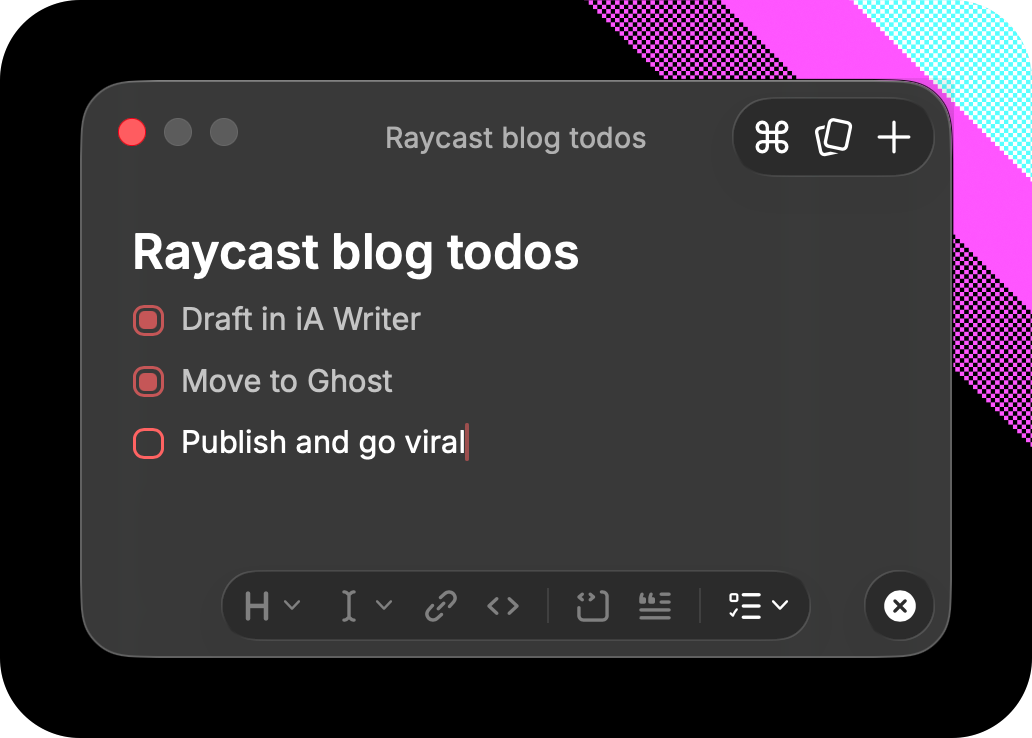
Raycast Notes is definitely nice for quickly jotting down notes. But I’m in a bigger existential crisis about my note taking set-up. (Basically: to ditch Notion or not?) And I don’t see this covering enough bases to become my main driver.
Script commands
Power user stuff but getting more accessible if you can let AI create those scripts. One small one I use often is letting [cf] (close finder windows) clean up my desktop explosion.
Dictation
I don’t talk to my computer, and use dictation only in the car. But I recognize that this is becoming a thing, especially when prompting your agent army. The new Raycast (beta) has dictation built in, with the ability to add app-specific transcription prompts. I’m going to give it a shot, but I think I’d rather find a transcription app that does dictation, and transcription from both meetings and recordings.
Raycast on iOS
Now that I am making Raycast my go-to AI chat, I’ve finally downloaded the iOS app. But where I love the deep integration into macOS, iOS allows for none of that, so I don’t really see much other use in the app.
Maybe you were already in the Rayhole, in which case: what am I missing?
If you’ve been meaning to check it out: I hope this helped. Seriously, I need more people to talk to about Raycast.